
Best Discounts
The best discounts this week
Every week you can find the best discounts here.






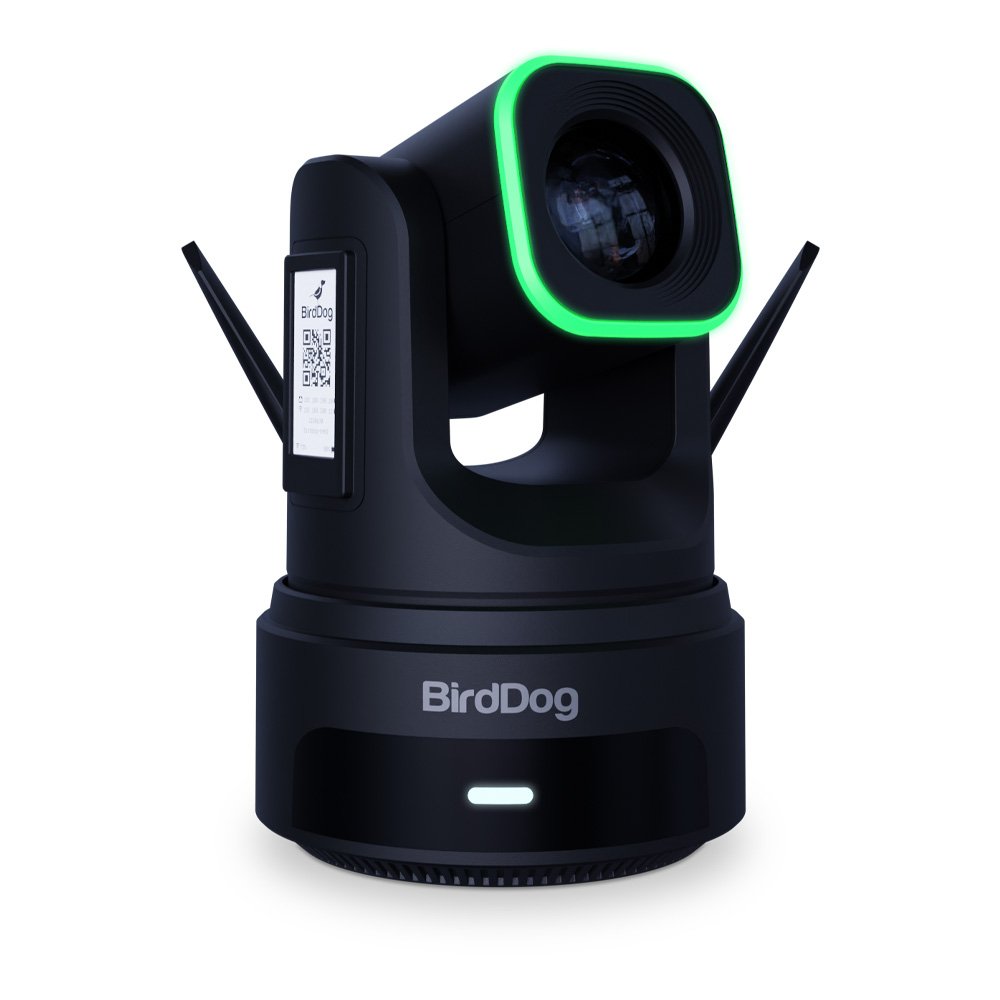


BirdDog – X4 Ultra 2160p PTZ with WiFi 6 Support and 20x Zoom (Black)
€2,580.69
In Stock
- 1/1.8″ UltraHD PTZ camera with 20x optical zoom and NDI HX3 & Wi-Fi support
- Promo: €400 discount available for upgrading existing PTZ cameras via BirdDog’s website until 31.12.2024
- Built-in battery with up to 6 hours of runtime and Wi-Fi 6 for fast, reliable streaming connections
- AI tracking and framing capabilities for quick movement adjustments
- Supports multiple video formats up to 4K60 with H.264 and H.265 compression
- Compact and lightweight design (14 x 18.9 x 20.3 cm, approx. 2.2 kg) for mobile use
- Includes a remote control, DC 12V power adapter, and USB cable in the package
- Connectivity options: 3G-SDI, HDMI, Ethernet with PoE+, and USB-C
In Stock
- Delivered today (order Mon-Fri before 12:00, delivery between 17:00 and 22:00)
- Including shipping costs, sent by buymefy.com
- Pick up at a buymefy.com collection point is possible
- 30 days to change your mind and free returns
- Day and night customer service
Description
How to Use the BirdDog X4 Ultra 2160p PTZ Camera
1. Unboxing Your Camera
- Carefully open the box and remove the contents.
- Check that you have the following items:
- 1x X4 Camera
- 1x Remote Control
- 1x DC 12V Power Supply
- 1x USB Cable
2. Setting Up Your Camera
- Choose a location for your camera. Ensure it has a clear view of the area you want to capture.
- Connect the power supply to the camera and plug it into an electrical outlet.
- If using PoE, connect an Ethernet cable to the Ethernet port on the camera.
- Connect the camera to your network via WiFi:
- Access the camera settings using the supplied remote control.
- Follow the on-screen instructions to connect to your WiFi network.
3. Connecting to Your Streaming Software
- Install any necessary drivers or software on your computer to support NDI and streaming.
- Open your streaming software (e.g., OBS, vMix).
- Add a new video source and select NDI as the source type.
- Choose the BirdDog X4 camera from the list of available NDI sources.
4. Operating the Camera
- Use the remote control to pan, tilt, and zoom:
- Press the directional buttons to move the camera.
- Use the zoom buttons to adjust the optical zoom (up to 20x).
- Enable AI tracking and framing through the camera settings for automatic adjustments during movement.
- Check the E-Ink display for customized logos or information about camera status.
5. Recording and Streaming
- Once everything is set up, start your recording or streaming session within your software.
- Monitor the camera feed through the software interface to ensure proper framing and focus.
6. Maintenance and Upgrades
- Regularly check for firmware updates on the BirdDog website to ensure optimal performance.
- Consider registering your existing PTZ camera for a discount on your purchase of the BirdDog X4.
- Use the BirdDog website for additional tips and troubleshooting.
Related products


Reviews
There are no reviews yet.