
Best Discounts
The best discounts this week
Every week you can find the best discounts here.






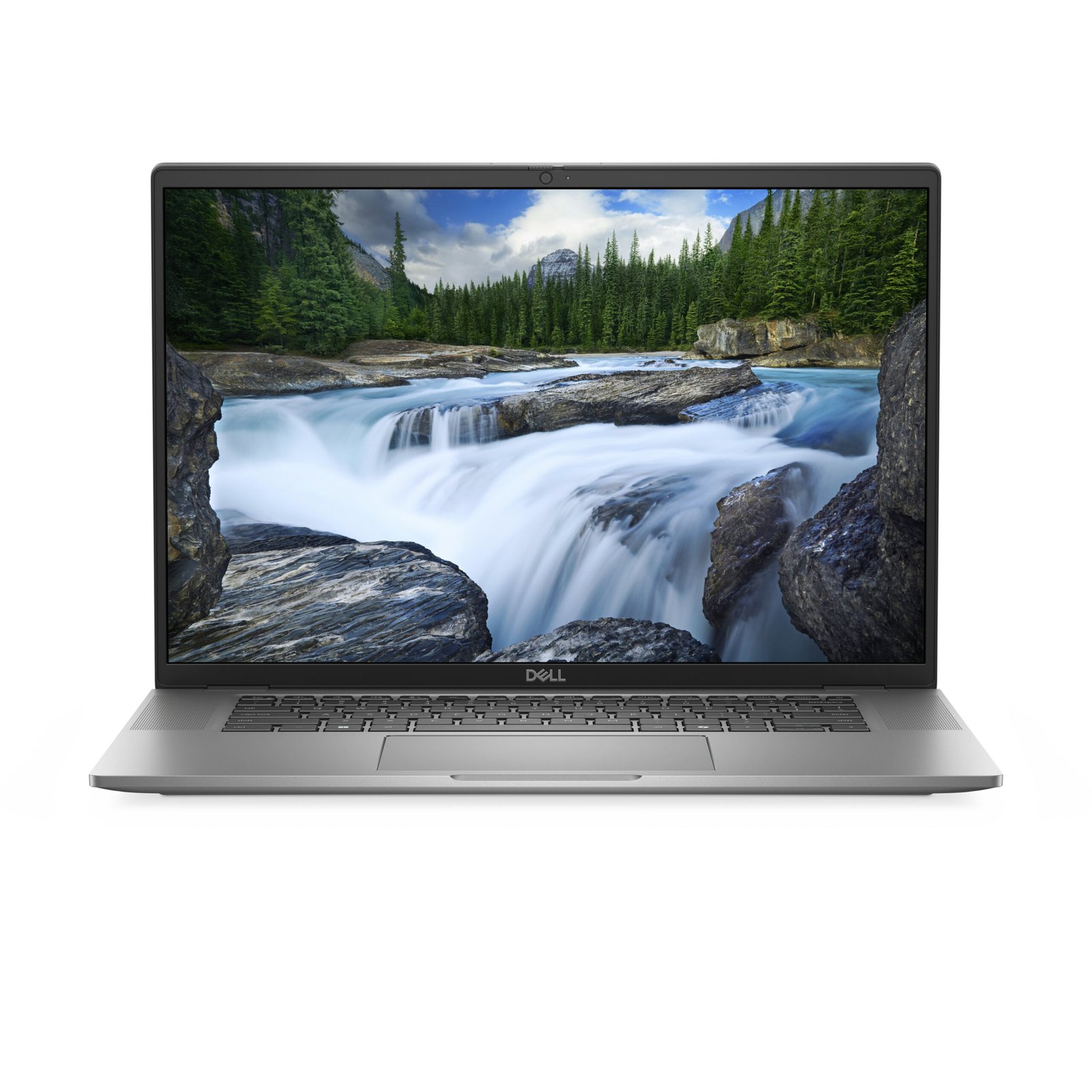
Dell Latitude 7650 Laptop: 16″ WUXGA Display, Core Ultra 7 165U Processor, 16GB RAM, 512GB SSD, Windows 11 Pro
€1,678.04
In Stock
- Model: Dell Latitude 7650, featuring a 16″ WUXGA display (1920 x 1200).
- Processor: Powered by Intel Core Ultra 7 165U with a 12MB cache for enhanced performance.
- Memory & Storage: Equipped with 16GB LPDDR5x RAM and a 512GB SSD for ample storage and multitasking capabilities.
- Battery Life: Up to 15% longer battery life compared to previous models, ensuring productivity on the go.
- AI Features: Integrated AI enhances productivity, collaboration, and security, including tools for efficient video conferencing and malware detection.
- Design & Connectivity: Premium design with optional mini-LED backlighting, fast Wi-Fi 7 connectivity, and mobile broadband options (5G/4G LTE).
- Security: Advanced security features such as Dell SafeBIOS, optional fingerprint readers, and military-grade certification for robust protection.
- Sustainability: Made from 50% recycled aluminum and designed for energy efficiency, certified with ENERGY STAR® 8.0 and TCO 9th generation standards.
In Stock
- Delivered today (order Mon-Fri before 12:00, delivery between 17:00 and 22:00)
- Including shipping costs, sent by buymefy.com
- Pick up at a buymefy.com collection point is possible
- 30 days to change your mind and free returns
- Day and night customer service
Description
How to Use the Dell Latitude 7650
1. Unboxing Your Laptop
- Carefully remove the Dell Latitude 7650 from its box.
- Ensure you have the following items:
- Laptop
- AC adapter
- Power cord
- Quick start guide
- Check for any visible damage before starting the setup.
2. Charging Your Laptop
- Plug the AC adapter into a power outlet.
- Connect the other end to the laptop’s charging port.
- Allow the laptop to charge fully before the first use (usually indicated by a charging LED).
3. Powering On Your Laptop
- Press the power button located on the top right of the keyboard.
- Wait for the laptop to boot up and display the Windows 11 Pro setup screen.
4. Setting Up Windows 11
- Select your preferred language and region settings.
- Connect to your Wi-Fi network.
- Sign in with your Microsoft account or create a new one.
- Follow the on-screen instructions to complete the setup.
5. Exploring the Interface
- Familiarize yourself with the Windows 11 desktop layout:
- Start Menu: Access applications and settings.
- Taskbar: Quickly navigate open applications.
- Notification Center: View notifications and settings.
- Check if all necessary updates are installed for optimal performance.
6. Connecting Peripherals
- Use USB ports to connect devices like mice, keyboards, or external drives.
- Connect to external displays using HDMI or USB-C ports.
- Use Bluetooth to connect wireless devices:
- Go to Settings > Devices > Bluetooth & other devices.
- Turn on Bluetooth and pair your devices.
7. Utilizing Built-in Applications
- Open Microsoft Edge for web browsing.
- Use Microsoft Office apps for document editing.
- Explore the Windows Store for additional apps.
8. Enhancing Security
- Set up Windows Hello for biometric login (if supported):
- Go to Settings > Accounts > Sign-in options.
- Follow instructions to set up facial recognition or fingerprint login.
- Regularly update your device to protect against security vulnerabilities.
9. Customizing Settings
- Go to Settings to adjust display, sound, and notification preferences.
- Personalize your desktop background and themes under Personalization settings.
10. Getting Help
- Access Dell Support by visiting the Dell website for troubleshooting and guides.
- Utilize the ProSupport feature for any technical issues or inquiries.


Reviews
There are no reviews yet.