
Best Discounts
The best discounts this week
Every week you can find the best discounts here.







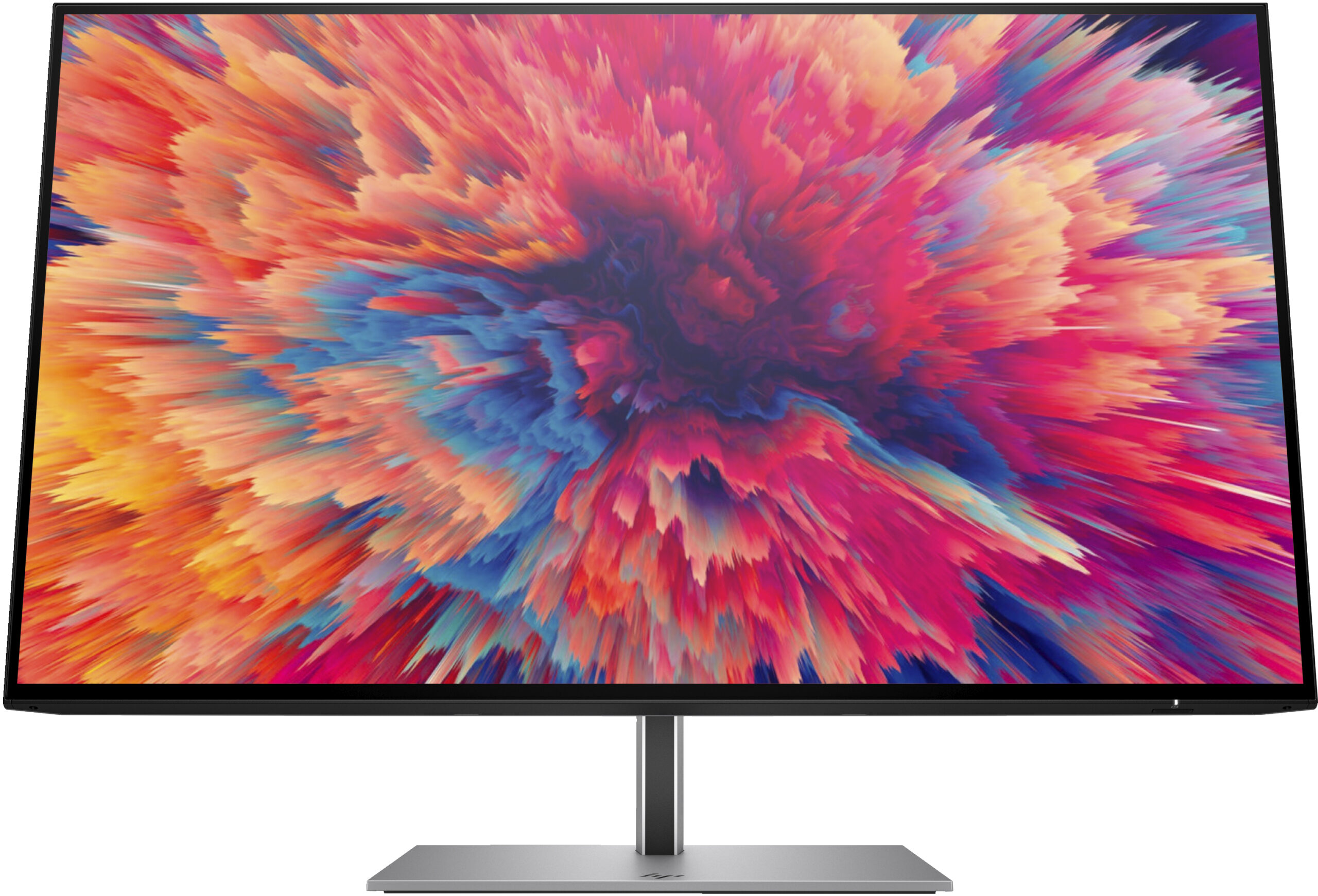
HP P27 G5 Full HD Monitor, 27 inches (68.6 cm), 1920 x 1080 Pixels, LCD, 5 ms Response Time, Black
€147.95
In Stock
- 27-inch Full HD Display: 1920 x 1080 pixels resolution for sharp images and smooth visuals.
- 75 Hz Refresh Rate: Provides fluid motion and reduces motion blur for an enhanced viewing experience.
- Sleek Design: Features a slim, three-sided micro-edge bezel and adjustable stand for an optimized workspace.
- Easy Management: Intuitive OSD Joypad for adjusting settings and HP Display Center for on-screen management.
- Eye Comfort: Includes a blue light filter mode to reduce eye strain during prolonged use.
- Eco-Friendly: Made with 85% recycled plastics and packaged in 100% recyclable materials.
- Wide Viewing Angles: IPS technology ensures consistent color and image quality from various angles (178 degrees).
- Efficient Cable Management: Designed to keep your workspace organized and clutter-free.
In Stock
- Delivered today (order Mon-Fri before 12:00, delivery between 17:00 and 22:00)
- Including shipping costs, sent by buymefy.com
- Pick up at a buymefy.com collection point is possible
- 30 days to change your mind and free returns
- Day and night customer service
Description
How to Use the HP P27 G5 FHD Monitor
1. Unboxing Your Monitor
- Carefully open the packaging and remove the monitor and its components.
- Ensure you have all parts: Monitor, Stand, Power Cable, HDMI/DisplayPort Cable, and User Manual.
- Check for any visible damage before proceeding.
2. Assembling the Monitor
- Attach the stand to the monitor by aligning the grooves and securing it in place.
- Ensure the stand is firmly attached for stability.
3. Connecting the Monitor
- Find a suitable location for your monitor on your desk.
- Connect the power cable to the monitor and plug it into a wall outlet.
- Use either the HDMI or DisplayPort cable to connect the monitor to your computer.
- Ensure both ends of the cable are securely connected.
4. Powering On the Monitor
- Press the power button located on the bottom edge of the monitor.
- Wait for the monitor to boot up and display a signal from your computer.
5. Adjusting Display Settings
- Use the Joypad OSD button to access the on-screen display settings.
- Navigate through the menu to adjust brightness, contrast, and resolution as needed.
- Save your settings before exiting the menu.
6. Utilizing HP Display Center
- Download the HP Display Center software from the Microsoft Store if you haven’t already.
- Open the software and customize your display settings, such as screen sharing and dimming options.
7. Managing Cables
- Use the provided cable management solution to organize cables and reduce clutter.
- Ensure cables are not obstructing your workspace for better productivity.
8. Environmental Considerations
- Be mindful of the EPEAT registration and proper recycling of packaging materials.
- Dispose of any waste in accordance with local recycling guidelines.
9. Troubleshooting
- If the monitor does not turn on, check the power connection and ensure the outlet is functional.
- If there is no signal, verify that the correct input source is selected and the cable is properly connected.
10. Enjoy Your Monitor!
- Now that your monitor is set up, you can enjoy a high-quality viewing experience for work or entertainment.
- Explore the features and settings to optimize your usage!



Reviews
There are no reviews yet.