
Best Discounts
The best discounts this week
Every week you can find the best discounts here.
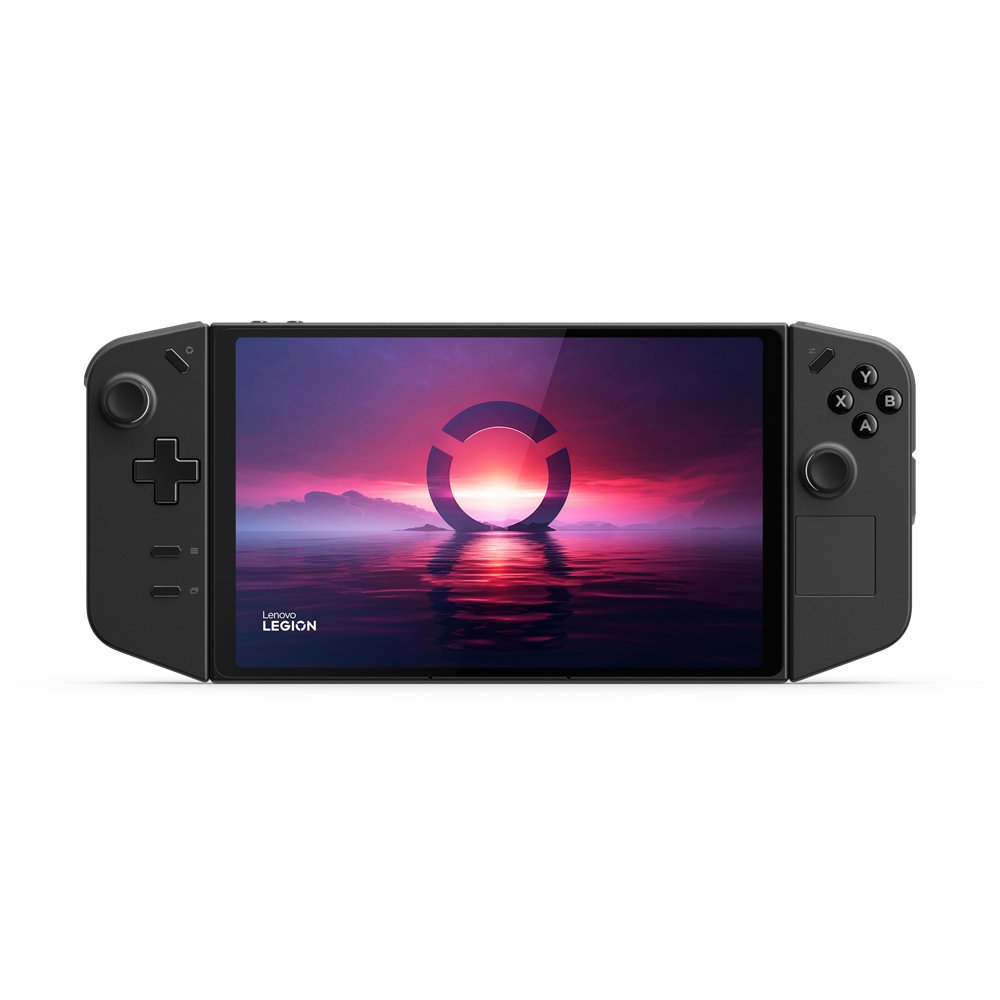
Lenovo Legion Go with M.2, featuring AMD Zen 4 and Ryzen Z1 Extreme, 3300 MHz, up to 5.1 GHz
€830.97
In Stock
- Model: Lenovo Legion Go
- Processor: AMD Ryzen Z1 Extreme, based on AMD Zen 4 architecture
- Display: 8.8-inch screen with a resolution of 2560 x 1600 pixels and 500 cd/m² brightness
- Storage: 512 GB M.2 SSD with PCI Express 4.0 interface
- Gaming Controls: Features both analog and digital control technology with D-Pad
- Color: Black
- Connectivity: Supports Wi-Fi 6E (802.11ax) standards
In Stock
- Delivered today (order Mon-Fri before 12:00, delivery between 17:00 and 22:00)
- Including shipping costs, sent by buymefy.com
- Pick up at a buymefy.com collection point is possible
- 30 days to change your mind and free returns
- Day and night customer service
Description
How to Use the Lenovo Legion Go
1. Unboxing Your Lenovo Legion Go
- Carefully open the packaging.
- Remove the Lenovo Legion Go and its accessories from the box.
- Check for included items:
- Power adapter
- User manual
- Warranty card
2. Charging Your Device
- Connect the power adapter to the charging port of the Legion Go.
- Plug the adapter into a wall socket.
- Allow the device to charge fully before the first use (indicated by a solid charging light).
3. Turning On the Device
- Press and hold the power button until the Lenovo logo appears on the screen.
- Wait for the device to boot up.
4. Setting Up Your Device
- Select your preferred language.
- Connect to Wi-Fi:
- Choose your Wi-Fi network.
- Enter the password for the network if prompted.
- Follow on-screen instructions to complete the initial setup.
5. Customizing Your Settings
- Access the Settings menu by clicking on the gear icon.
- Adjust display settings (brightness, resolution).
- Set up your gaming controls as per your preference:
- Analog and digital control options are available.
- Customize the D-Pad settings.
6. Installing Games and Applications
- Open the game store or application installer on your device.
- Search for your desired games or applications.
- Select and install the applications you want to use.
7. Connecting to Wi-Fi
- Go to Settings.
- Select ‘Network & Internet’ and then ‘Wi-Fi.’
- Choose your network and enter the password.
8. Enjoying Your Gaming Experience
- Launch your installed games from the home screen.
- Use the gaming controls to navigate through the game menus.
- Adjust in-game settings as needed for optimal performance.
9. Powering Off the Device
- Press and hold the power button.
- Select ‘Power Off’ from the options that appear.
- Wait for the device to shut down completely before storing or transporting.
10. Troubleshooting Common Issues
- If the device does not turn on, ensure it is charged.
- If you experience connectivity issues, restart the device and router.
- Refer to the user manual for specific error codes or problems.


Reviews
There are no reviews yet.