
Best Discounts
The best discounts this week
Every week you can find the best discounts here.

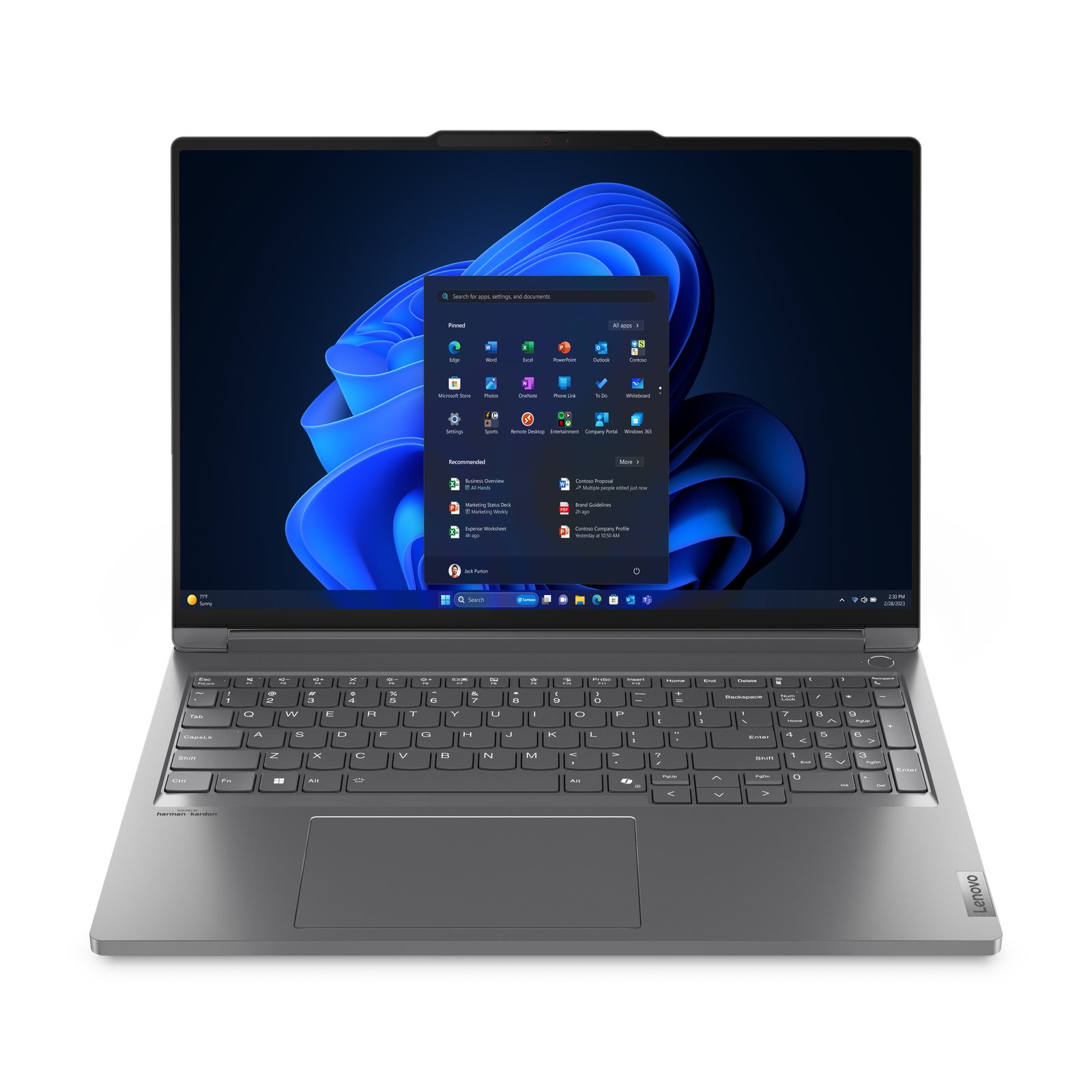
Lenovo ThinkBook 16p G5 IRX, Intel® Core™ i7, 16-inch (40.6 cm), 2560 x 1600 Resolution, 32 GB RAM, 1 TB Storage, Windows
€1,828.58
In Stock
- Powerful Performance: Equipped with Intel® Core™ i7-14650HX processor, 16 cores (8P + 8E), and 24 threads for efficient multitasking.
- Stunning Display: 16-inch WQXGA (2560×1600) IPS display with 100% sRGB, Dolby Vision, and 400 nits brightness for exceptional color accuracy.
- High-Speed Memory and Storage: 32 GB DDR5 RAM and 1 TB PCIe 4.0 NVMe SSD for rapid data access and ample storage.
- Enhanced Cooling System: Innovative cooling with dual fans and strategic vent placement to maintain performance during prolonged use.
- Smart AI Features: AI-driven battery management extends usage time based on activity, while a built-in intelligent assistant boosts productivity.
- Rugged Durability: Designed to withstand extreme conditions, passing strict MIL-STD-810H tests for robustness and reliability.
- Security Features: Includes ThinkShield for end-to-end protection, fTPM for data encryption, and a fingerprint scanner for secure access.
- Eco-Friendly Design: Incorporates recycled materials and meets energy efficiency certifications like EPEAT® Gold and ENERGY STAR® 8.0.
In Stock
- Delivered today (order Mon-Fri before 12:00, delivery between 17:00 and 22:00)
- Including shipping costs, sent by buymefy.com
- Pick up at a buymefy.com collection point is possible
- 30 days to change your mind and free returns
- Day and night customer service
Description
How to Use the Lenovo ThinkBook 16p G5 IRX
1. Initial Setup
- Unbox the ThinkBook 16p G5 and ensure all components are present.
- Connect the power adapter to the laptop and plug it into a power source.
- Press the power button to turn on the laptop.
2. Setting Up Windows
- Select your preferred language and region during the Windows setup process.
- Connect to your Wi-Fi network.
- Sign in with your Microsoft account or create a new account if you don’t have one.
- Follow the on-screen prompts to complete the setup.
3. Familiarizing with Features
- Explore the desktop interface and familiarize yourself with the Start Menu.
- Check out the pre-installed applications and tools.
- Access the Settings menu by clicking on the gear icon in the Start Menu.
4. Utilizing the Touchpad and Keyboard
- Use the touchpad to navigate by moving your finger across the surface.
- Left-click by tapping once or pressing the left side of the touchpad.
- Right-click by tapping two fingers or pressing the right side of the touchpad.
- Adjust touchpad settings in the Settings menu under Devices > Touchpad.
5. Managing Battery Life
- Enable Battery Saver mode via Settings > System > Battery to extend battery life.
- Use the AI-driven battery management features for optimal performance.
- Charge the laptop regularly using the provided power adapter.
6. Connecting Accessories
- Connect peripherals (like a mouse, keyboard, or external monitor) via USB or HDMI ports.
- Utilize Lenovo Magic Bay Accessories for enhanced productivity.
- Follow the instructions that come with each accessory for proper setup.
7. Keeping Your Device Secure
- Enable Windows Hello for secure login through facial recognition or fingerprint.
- Regularly update your antivirus software and Windows for security patches.
- Utilize the Kensington Nano Security Slot for physical security when in public.
8. Troubleshooting Common Issues
- If the laptop won’t turn on, check the power connection and ensure the battery is charged.
- For software issues, restart the laptop and check for updates in Settings > Update & Security.
- Refer to the Lenovo support website for specific troubleshooting guides.
9. Exploring Additional Features
- Use the Dolby Vision features for an enhanced viewing experience.
- Explore the NVIDIA GeForce RTX 4060 capabilities for gaming and graphic design.
- Take advantage of Microsoft Copilot for productivity assistance while working.
10. Regular Maintenance
- Keep the laptop clean by regularly wiping the keyboard and screen.
- Update drivers and software periodically via Lenovo Vantage.
- Check the system health and performance regularly in Settings.


Reviews
There are no reviews yet.