
Best Discounts
The best discounts this week
Every week you can find the best discounts here.







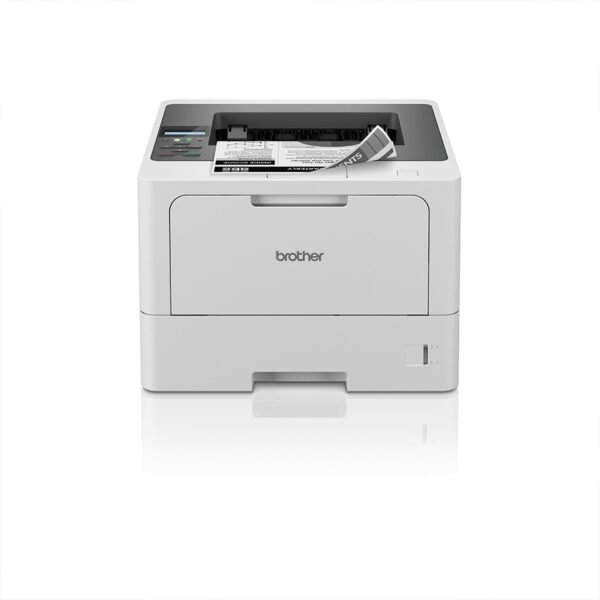
Brother MFC-L5710DW Laser Printer, Monochrome Printing, 1200 x 1200 DPI, Black and White, A4 Size
€479.01
In Stock
- Print speed of up to 48 pages per minute and duplex printing at 24 pages per minute.
- Duplex scanning speed of up to 56 images per minute.
- 250-sheet paper tray, expandable to 1,290 sheets, with a 50-sheet automatic duplex document feeder (DADF).
- 8.9 cm touchscreen color display and 512 MB RAM for user-friendly operation.
- Includes toner for up to 3,000 pages, with an optional toner available for up to 11,000 pages.
- Robust design and flexible paper processing options, ideal for workgroups.
- High-level security features on network, device, and document levels, ensuring data protection.
- Compatible with various document management and workflow solutions, enhancing productivity and security.
In Stock
- Delivered today (order Mon-Fri before 12:00, delivery between 17:00 and 22:00)
- Including shipping costs, sent by buymefy.com
- Pick up at a buymefy.com collection point is possible
- 30 days to change your mind and free returns
- Day and night customer service
Description
How to Use the Brother MFC-L5710DW
Unboxing Your Printer
- Carefully remove the printer from the box.
- Remove all packaging materials, including tape and protective covers.
- Check the contents: printer, power cord, toner cartridge, quick start guide.
Setting Up the Printer
- Place the printer on a stable, flat surface near a power outlet.
- Connect the power cord to the printer and plug it into the electrical outlet.
- Press the power button to turn on the printer.
Installing the Toner Cartridge
- Open the front cover of the printer.
- Carefully remove the toner cartridge from its packaging.
- Align the toner cartridge with the grooves inside the printer and slide it into place until it clicks.
- Close the front cover securely.
Loading Paper
- Pull out the paper tray from the bottom of the printer.
- Adjust the paper guides to fit the size of your paper (A4).
- Load the paper into the tray and push the tray back into the printer.
Connecting to Wi-Fi
- Press the Menu button on the printer’s control panel.
- Navigate to Network > WLAN > Setup Wizard.
- Select your Wi-Fi network and enter the password when prompted.
- Confirm the connection.
Printing a Document
- Ensure the printer is powered on and connected to your computer or network.
- Open the document you want to print on your computer.
- Select ‘Print’ from the File menu.
- Choose ‘Brother MFC-L5710DW’ as your printer.
- Adjust settings as needed (e.g., number of copies, duplex printing).
- Click ‘Print’ to start printing.
Using the Touchscreen Display
- Tap the 8.9 cm touchscreen to access various functions.
- Select ‘Copy’, ‘Scan’, or ‘Fax’ based on your needs.
- Follow the on-screen instructions to complete your tasks.
Maintaining Your Printer
- Regularly check and replace the toner cartridge when low.
- Clean the exterior and interior components to ensure optimal performance.
- Keep the printer updated with the latest firmware from the Brother website.
Getting Help
- Refer to the quick start guide for troubleshooting tips.
- Visit Brother’s support website for detailed manuals and customer service.
Related products




Reviews
There are no reviews yet.