
Best Discounts
The best discounts this week
Every week you can find the best discounts here.
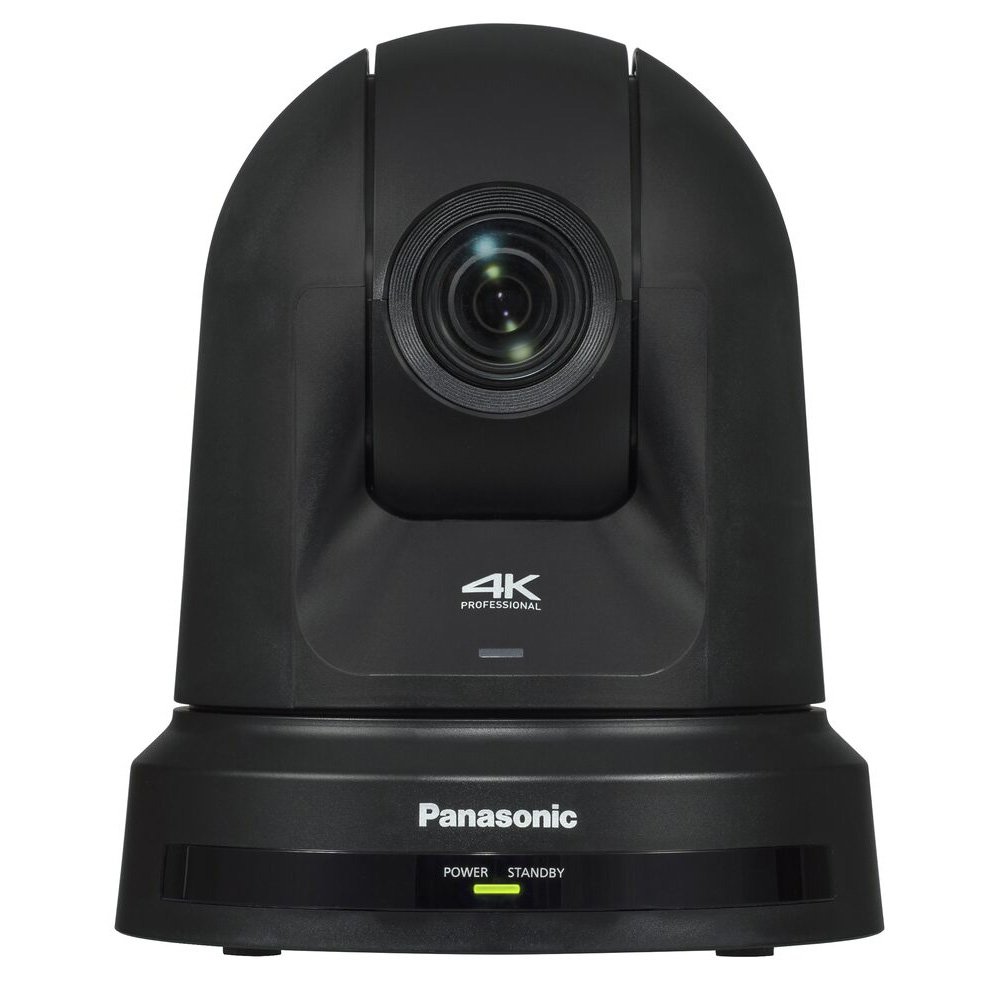
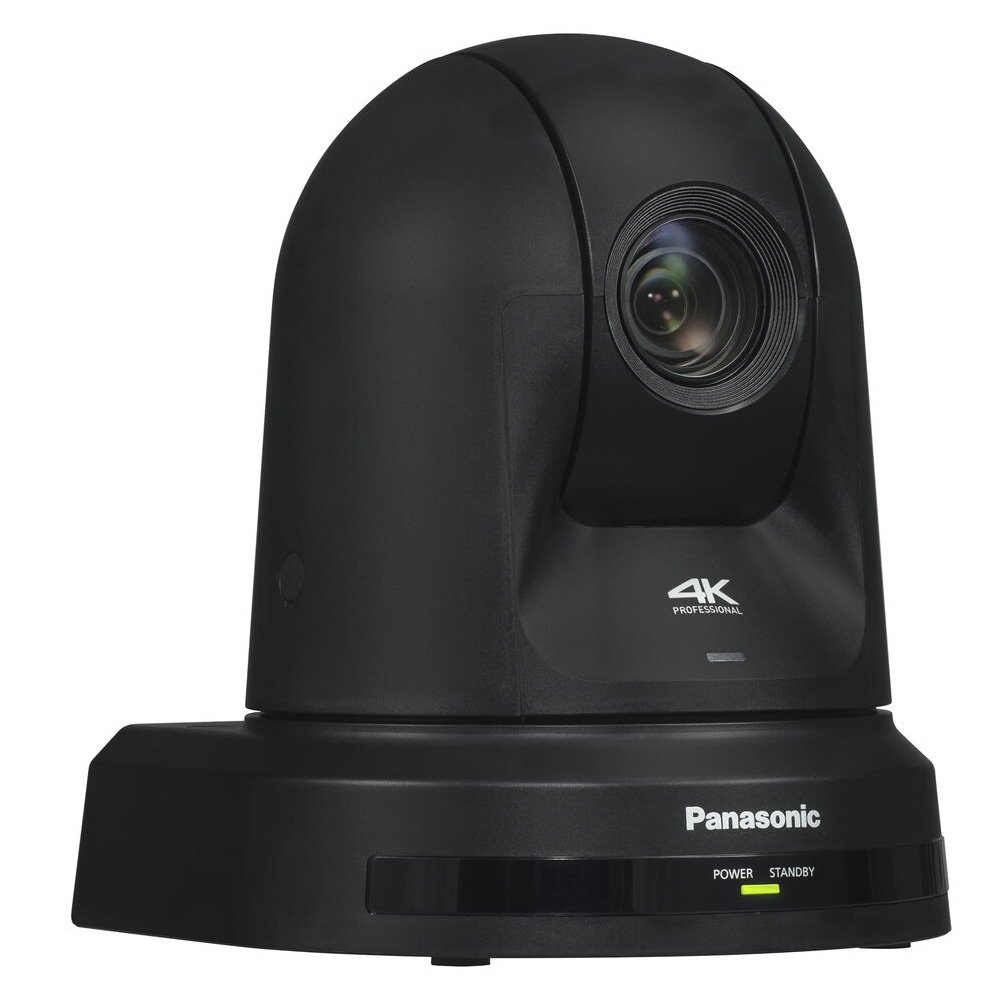

Panasonic AW-UE30K Camera
€2,796.50
Available on backorder
- Integrated 4K pan-tilt camera with 20x optical zoom and HDMI connectivity.
- 1/2.5″ 4K MOS sensor with a wide field of view (74.1°) and 4K video output up to 2160/29.97p.
- Features built-in auto-tracking and image stabilization for smooth and stable video recordings.
- Direct drive system ensures quiet operation and fluid camera movements.
- Can be used as a USB camera (UVC) for online conferences, supporting SRT and optional NDI|HX.
- Compact design (160 x 192 x 166 mm) weighing approximately 1.8 kg, ideal for flexible applications.
- Multiple video compression formats supported, including H.264 and H.265.
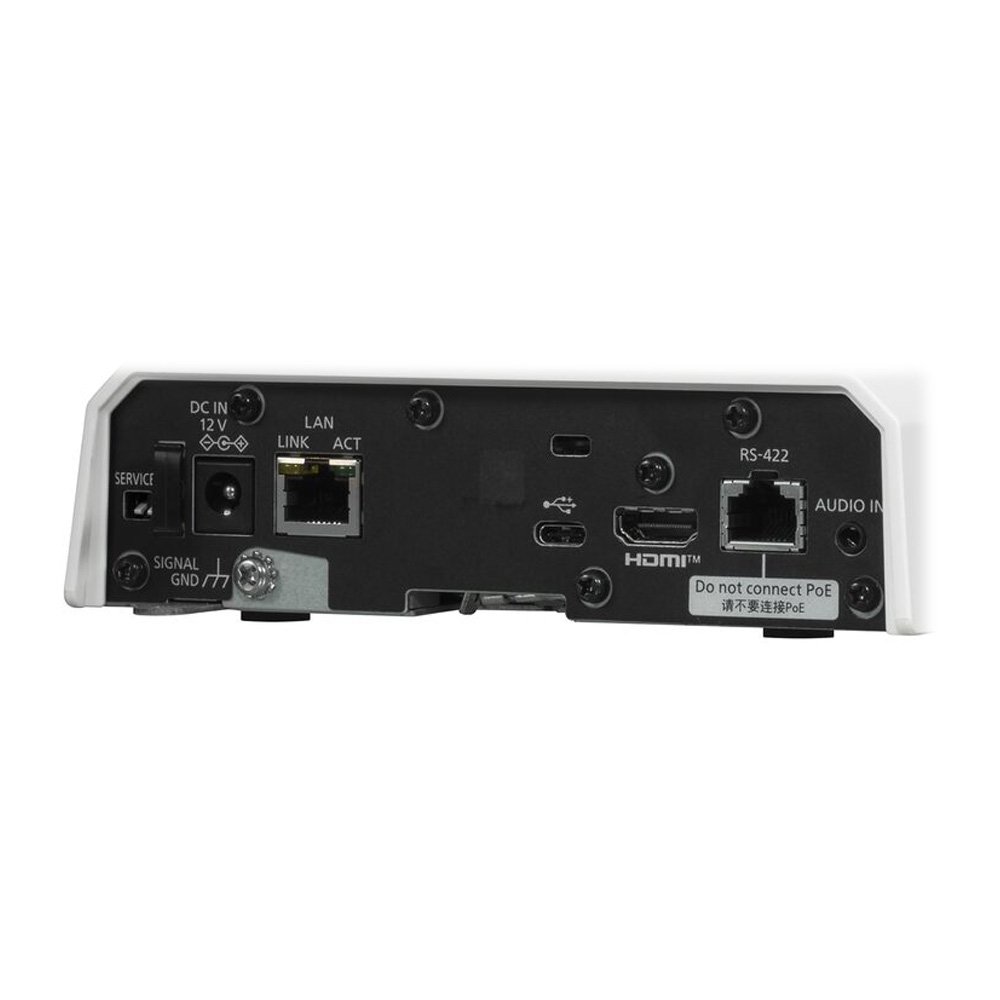
- Equipped with various inputs and outputs, including HDMI, audio input, and remote control connections.
Available on backorder
- Delivered today (order Mon-Fri before 12:00, delivery between 17:00 and 22:00)
- Including shipping costs, sent by buymefy.com
- Pick up at a buymefy.com collection point is possible
- 30 days to change your mind and free returns
- Day and night customer service
Description
How to Use the Panasonic – AW-UE30K
Unboxing and Setup
- Open the box and remove the camera carefully.
- Check the contents of the package: camera, power adapter, user manual, and any included cables.
- Place the camera on a stable surface or mount it securely, ensuring it has a clear view of the area you want to capture.
Connecting Power
- Connect the power adapter to the camera’s power input.
- Plug the other end of the adapter into a power outlet.
- Alternatively, connect the camera using IEEE802.3 PoE+ for power through an Ethernet cable.
Connecting to a Display
- Use an HDMI cable to connect the camera’s HDMI output to a compatible display or monitor.
- Ensure the display is powered on and set to the correct input source.
Setting Up Video Output
- Power on the camera and wait for it to initialize.
- Use the camera’s menu system to select the desired video resolution (e.g., 4K at 29.97p).
- Adjust other settings as needed, such as frame rate and compression format.
Using Auto-Tracking
- Activate the auto-tracking feature through the camera’s menu.
- Ensure the subject you want to track is within the camera’s field of view.
- Adjust sensitivity settings if necessary for better tracking performance.
Remote Control Setup
- Connect the camera to a network via the RJ-45 port for remote control functionality.
- Use RS232 or RS422A connections if you prefer wired remote control options.
- Install the necessary software on your control device (PC or tablet) to manage camera settings remotely.
Using the Camera for Online Conferences
- Connect the camera to your computer using the USB-C port.
- Open your preferred video conferencing software.
- Select the Panasonic AW-UE30K as your video source in the software settings.
- Begin your online meeting with high-quality video output.
Maintenance and Care
- Regularly check for firmware updates from Panasonic to ensure optimal performance.
- Keep the camera lens clean using a soft, dry cloth.
- Store the camera in a safe place when not in use to avoid damage.
Getting Help
- Refer to the user manual for detailed instructions and troubleshooting.
- Visit the Panasonic support website for additional resources and customer support.
Related products


Reviews
There are no reviews yet.