
Best Discounts
The best discounts this week
Every week you can find the best discounts here.







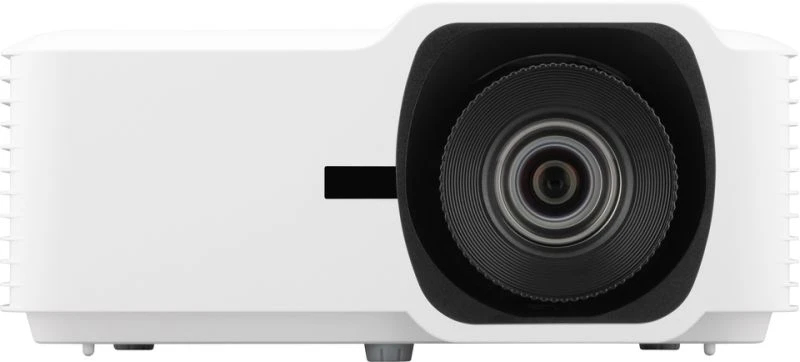
Acer H6546Ki DLP Projector, 5200 ANSI Lumens, 1080p (1920×1080), 10000:1 Contrast Ratio, 16:9 and 4:3 Aspect Ratios
€615.62
In Stock
- Full HD Resolution: Displays a vivid 100-inch (254 cm) image in 1080p Full HD for an immersive experience.
- Brightness: Offers up to 5,200 ANSI lumens for clear, vibrant images in large venues like auditoriums.
- Eye Protection: Features Acer BlueLightShield™ technology to reduce eye strain during prolonged use.
- Adaptive Brightness: Utilizes Acer LumiSense™ to adjust brightness and color saturation based on the content being displayed.
- Color Enhancement: Incorporates Acer ColorBoost3D™ for natural colors and exceptionally bright images.
- Color Consistency: Ensures uniform, natural colors with Acer ColorSafe II technology, preventing color loss.
- Continuous Operation: Designed for round-the-clock use, ideal for public displays and exhibitions.
- Automatic Keystone Correction: Simplifies setup with automatic vertical keystone correction for optimal presentation angles.
In Stock
- Delivered today (order Mon-Fri before 12:00, delivery between 17:00 and 22:00)
- Including shipping costs, sent by buymefy.com
- Pick up at a buymefy.com collection point is possible
- 30 days to change your mind and free returns
- Day and night customer service
Description
How to Use the Acer H6546Ki Projector
Unboxing Your Projector
- Carefully remove the Acer H6546Ki from the box.
- Check for all included accessories:
- Power cable
- Remote control
- User manual
- Wireless dongle (if included)
Setting Up the Projector
- Choose a suitable location with a flat surface.
- Connect the power cable to the projector and plug it into an electrical outlet.
- Position the projector at an appropriate distance from the screen:
- For a 100-inch screen, position the projector approximately 3.5 to 4.5 meters away.
- If using wired connections, connect your device (e.g., laptop, DVD player) to the projector using HDMI or VGA cables.
Powering On the Projector
- Press the power button located on the top of the projector or use the remote control.
- Wait for the projector to warm up; the power indicator will change to green once ready.
Adjusting the Image
- Use the zoom and focus rings to adjust the size and clarity of the image.
- If the image appears distorted, use the automatic vertical trapezoid correction feature:
- Navigate to the settings menu using the remote control.
- Select “Keystone” and then “Auto” to correct any vertical distortions.
Using Wireless Projection
- Ensure the projector is connected to the same Wi-Fi network as your device.
- Plug in the wireless dongle (if required) into the projector.
- On your device, open the wireless display settings and select the projector from the list.
- Follow the on-screen prompts to complete the connection.
Adjusting Picture Settings
- Access the settings menu using the remote control.
- Explore options such as:
- Acer BlueLightShield™ for eye protection.
- Acer LumiSense™ for automatic brightness and color adjustments.
- Acer ColorBoost3D™ for enhanced color quality.
Shutting Down the Projector
- Press the power button to turn off the projector.
- Wait for the projector to cool down; the fan will continue to run for a few minutes.
- Unplug the power cable if you do not plan to use it again soon.
Maintenance Tips
- Regularly clean the projector lens with a soft microfiber cloth.
- Check and clean the air filters as needed to prevent overheating.
- Store the projector in a cool, dry place when not in use.


Reviews
There are no reviews yet.