
Best Discounts
The best discounts this week
Every week you can find the best discounts here.







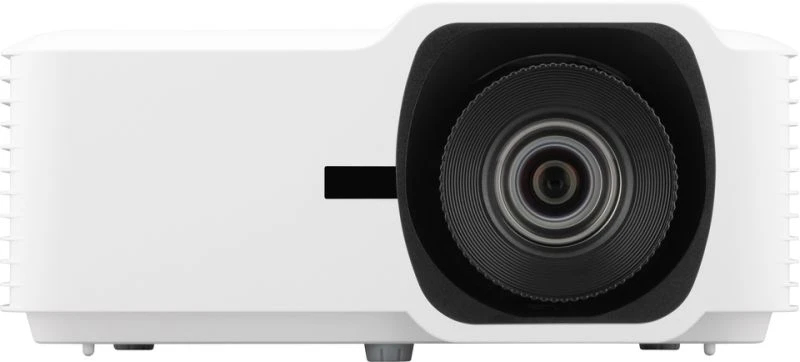
Epson V11HA76080 Projector: 4000 ANSI Lumens, 3LCD Technology, WXGA (1200×800) Resolution, 2500000:1 Contrast Ratio, 16:10 Aspect Ratio, Projection Range of 1397 – 3048 mm (55 -…
€1,714.42
In Stock
- Model: Epson V11HA76080
- Brightness: 4000 ANSI Lumens
- Projection Technology: 3LCD
- Native Resolution: WXGA (1200×800)
- Light Source: Laser with a lifespan of 20,000 hours (30,000 hours in economical mode)
- Focus Type: Auto/Manual with a fixed focal length of 9.5 mm
- Zoom Ratio: 1.35:1
- Video Color Modes: Whiteboard, Cinema, Dynamic, Presentation, sRGB
In Stock
- Delivered today (order Mon-Fri before 12:00, delivery between 17:00 and 22:00)
- Including shipping costs, sent by buymefy.com
- Pick up at a buymefy.com collection point is possible
- 30 days to change your mind and free returns
- Day and night customer service
Description
How to Use the Epson V11HA76080 Projector
1. Unboxing and Setup
- Carefully remove the projector from the box.
- Check the contents: projector, power cable, remote control, and user manual.
- Place the projector on a stable surface, ensuring it is level and unobstructed.
- Connect the power cable to the projector and plug it into an electrical outlet.
2. Connecting Your Device
- Use an HDMI cable to connect your computer or other device to the projector’s HDMI input.
- If using a VGA connection, ensure you have the correct adapter if needed.
- For audio, connect your device to the projector’s audio output if necessary.
3. Powering On the Projector
- Press the power button on the projector or the remote control.
- Wait for the fan to start and the light to warm up; this may take a few moments.
- Once the projector is on, a startup screen will appear.
4. Adjusting the Image
- Use the zoom lever to adjust the size of the projected image.
- Manually focus the image using the focus ring until it is sharp and clear.
- If needed, adjust the projector’s position to align the image with your screen.
5. Selecting the Input Source
- Press the “Source” button on the remote control.
- Choose the appropriate input source (HDMI, VGA, etc.) using the arrow keys.
- Press “Enter” to confirm your selection.
6. Adjusting Settings
- Access the menu using the remote control.
- Navigate to settings such as brightness, contrast, and color mode.
- Experiment with different video color modes (e.g., Cinema, Dynamic, Presentation) to find your preference.
7. Powering Off the Projector
- Press the power button on the projector or the remote control.
- Wait for the projector to cool down; do not unplug it immediately.
- Once the indicator light shows it is safe, unplug the power cable.
8. Maintenance Tips
- Clean the lens regularly with a soft, dry cloth.
- Check the air filter periodically and clean or replace as needed.
- Store the projector in a cool, dry place when not in use.



Reviews
There are no reviews yet.